
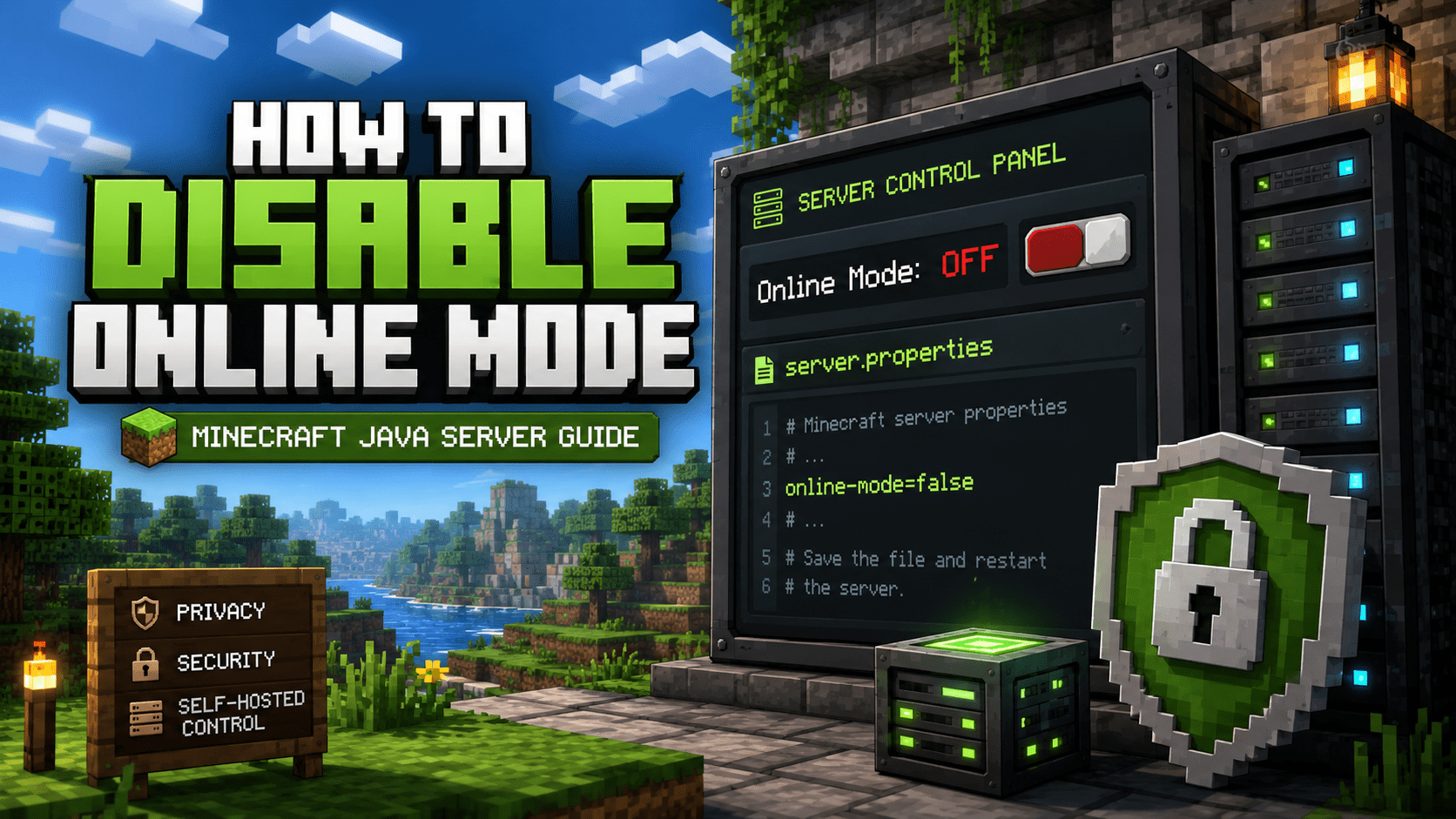
If you need to disable online mode Minecraft server authentication, you can do it by changing the online-mode setting inside your server’s server.properties file. This setting controls whether your Minecraft: Java Edition server checks connecting players against Minecraft’s account authentication system.
By default, Minecraft Java servers use:
online-mode=trueWhen online mode is enabled, players must authenticate with a valid Minecraft account before joining. When online mode is disabled, the server no longer verifies players through Minecraft’s authentication system. The Minecraft Wiki explains that online-mode=true checks connecting players against the Minecraft account database, while online-mode=false disables that check. It also warns that fake accounts can connect when this setting is disabled.
Because of that, disabling online mode should only be done in specific situations, such as private testing environments, controlled LAN-style setups, or backend servers behind a properly secured proxy network.
This guide explains how to safely disable online mode on a Minecraft Java server, what risks to understand first, and what extra protection you should add before allowing players to connect.
This Guide Is for Minecraft: Java Edition #
This guide applies to Minecraft: Java Edition servers, including:
- Vanilla Minecraft servers
- Paper servers
- Spigot servers
- Purpur servers
- Most other Spigot or Paper forks
This guide does not apply to Minecraft Bedrock Edition servers. Bedrock servers use different server software and different authentication behavior.
What Does Online Mode Do? #
Online mode controls whether your Minecraft server verifies player accounts before they join.
When online mode is enabled:
online-mode=truethe server checks that each joining player is using an authenticated Minecraft account.
When online mode is disabled:
online-mode=falsethe server does not verify connecting players through Minecraft’s authentication system. That means a player can attempt to join using any username.
This is why online mode should stay enabled for normal public servers.
When Should You Disable Online Mode? #
In most cases, you should not disable online mode on a public Minecraft server.
However, there are a few legitimate situations where disabling it may be used:
- private testing environments
- temporary development servers
- isolated private networks
- backend servers behind Velocity, BungeeCord, or another proxy
- controlled environments where player access is restricted in another way
For example, Paper’s Velocity documentation explains that backend Paper servers using Velocity modern forwarding must disable online-mode in server.properties because the proxy handles authentication instead. Paper also notes that modern Velocity forwarding is more secure than legacy forwarding and uses a shared secret to help prevent impersonation.
That proxy use case is different from simply running a public offline-mode server. If your backend server is behind a proxy, the backend server must be protected so players cannot connect to it directly.
Why Disabling Online Mode Is Risky #
Before you disable online mode on a Minecraft server, make sure you understand the risk.
When online mode is off:
- players are not verified by Minecraft authentication
- usernames are not protected
- someone may impersonate another player
- player UUID behavior can change
- permissions or inventories may not match previous data
- public servers become much easier to abuse
- extra access control becomes required
The Minecraft Wiki specifically warns that setting online-mode=false allows fake accounts to connect and describes public offline-mode servers as “cracked” servers.
For Academy Hosting-style guides, the safest recommendation is simple:
Do not disable online mode on a public-facing server unless you fully understand the security setup required.
Important Warning About Player Data and UUIDs #
Changing online mode can affect player identity data.
Minecraft servers use player UUIDs to track things like:
- inventories
- locations
- permissions
- economy data
- homes and claims
- plugin data
When you switch between online mode and offline mode, players may be treated as different users by the server or by plugins. This can make it look like inventories, ranks, or player data disappeared.
Before changing online mode, create a full backup of your server.
At minimum, back up:
world
world_nether
world_the_end
plugins
server.properties
ops.json
whitelist.json
banned-players.json
banned-ips.json
If your server uses LuckPerms, EssentialsX, CoreProtect, GriefPrevention, or any other plugin with player data, make sure the full plugins folder is included.
Before You Disable Online Mode #
Before editing any files:
- stop the server completely
- create a full backup
- confirm this change is actually needed
- make sure the server is private, protected, or behind a secure proxy
- prepare a whitelist or another access-control method
Do not make this change casually on an active public server.
How to Disable Online Mode in Minecraft #
Follow these steps to disable online mode on a Minecraft Java server.
Step 1: Stop Your Minecraft Server #
Stop your server from your hosting control panel or server console.
Wait until the server is fully offline before editing files.
This helps prevent the server from overwriting changes or saving partial configuration data while you are editing.
Step 2: Open the server.properties File #
Open your server files and locate:
server.propertiesThis file is usually located in the main server directory, near files and folders such as:
server.properties
eula.txt
plugins
world
server.jar
The Minecraft Wiki notes that server.properties stores multiplayer server settings, uses key=value formatting, and must keep the same structure when edited. It also notes that the server should be restarted after changes are made.
Step 3: Find the online-mode Setting #
Inside server.properties, look for this line:
online-mode=trueThis means online mode is currently enabled.
Step 4: Change online-mode to false #
Change the line to:
online-mode=falseMake sure you only change the value after the equals sign.
Correct:
online-mode=falseIncorrect:
online mode falseIncorrect:
online-mode: falseIncorrect:
onlinemode=falseThe setting must remain formatted exactly as:
online-mode=falseStep 5: Save the File #
Save the server.properties file.
Do not change the file extension, rename the file, or remove other settings from the file.
Step 6: Start the Server #
Start your server again.
Once the server is online, it will run with online authentication disabled.
Players will be able to connect without normal Minecraft account verification.
Step 7: Test the Server Carefully #
After restarting, test the server before opening it to other players.
Check that:
- the server starts without errors
- trusted players can join
- permissions still work
- inventories are correct
- plugins are not reporting UUID or authentication issues
- no unexpected users can connect
If something looks wrong, stop the server and restore from backup before continuing.
Recommended Security Steps After Disabling Online Mode #
If you disable online mode, you should add extra protection immediately.
Enable the Whitelist #
A whitelist restricts the server so only approved usernames can join.
In server.properties, set:
white-list=trueThen add trusted players to the whitelist from the console:
whitelist add PlayerNameYou can also enable the whitelist with:
whitelist onA whitelist is not perfect in offline mode because usernames are not authenticated, but it is still better than leaving the server completely open.
Use Firewall or IP Restrictions #
For private servers or proxy-backed networks, restrict who can connect to the server port.
This is especially important if you are using a proxy like Velocity or BungeeCord.
Backend servers should not be directly reachable by normal players. Only the proxy should be able to connect to them.
Use Secure Proxy Forwarding if Applicable #
If you are disabling online mode because your server is behind Velocity, configure forwarding properly.
For modern Velocity setups, Paper’s documentation says to:
- disable
online-modeon the backend Paper server - enable Velocity support in Paper configuration
- use a matching forwarding secret
- make sure proxy online-mode settings match properly
Paper’s Velocity documentation also warns that legacy BungeeCord forwarding is fundamentally insecure unless properly protected.
Do not simply set every backend server to offline mode and leave the ports open to the internet.
Use Authentication Plugins Only When Appropriate #
Some private offline-mode servers use login or authentication plugins.
These can help in controlled environments, but they are not the same as Mojang/Microsoft account authentication. They also add another system you must configure and maintain.
If you use one, make sure it is:
- actively maintained
- compatible with your server version
- configured correctly
- not your only protection on a public server
How to Re-Enable Online Mode #
If you want to turn authentication back on, stop the server and change the setting back to:
online-mode=trueThen save the file and restart the server.
Be aware that switching back may affect player data if players joined while the server was in offline mode.
Always back up before switching modes in either direction.
Common Issues After Disabling Online Mode #
Players Lost Inventories or Ranks #
This usually happens because player UUIDs changed when switching authentication modes.
Restore from backup if needed, or migrate player data carefully if you know what you are doing.
Unknown Players Can Join #
Offline mode does not verify usernames.
Enable a whitelist, restrict the server with firewall rules, or place the server behind a properly secured proxy.
Proxy Players Cannot Join Correctly #
If you are using Velocity or BungeeCord, make sure forwarding is configured properly and the backend server is not open to direct connections.
Plugins Are Acting Strange #
Some plugins depend on UUIDs, authentication status, or profile data.
Check plugin documentation before running them on an offline-mode server.
Should You Disable Online Mode? #
For most public Minecraft servers, the answer is no.
You should keep:
online-mode=trueunless you have a specific reason to disable it.
Disabling online mode may make sense for:
- private testing
- temporary local use
- secured proxy backend servers
- controlled environments with extra access protection
It is not recommended for normal public servers because it removes the built-in account verification that protects usernames and player identity.
Safe Offline Mode Starts With Access Control #
Changing online-mode=false is technically simple, but the security impact is serious. If you need to disable online mode on a Minecraft Java server, do it carefully, back up first, and make sure the server is protected before players connect.
For most regular servers, keeping online-mode=true is the safest choice. For private testing or secured proxy networks, offline mode can be useful when paired with proper whitelist, firewall, and proxy forwarding controls.
Written by
relyzishere
Part of the Academy Hosting team — running game, bot, and web servers in production. Published April 29, 2026. • 9 min read.
Keep reading
More from this category
How to Download a World From Your Minecraft Server
Downloading a Minecraft world from your server is useful when you want to create a local backup, move your world to another server, continue playing it in singleplayer, or keep a copy of your world outside your Game Panel. A Minecraft world

How to Upload a World to Your Minecraft Server
Uploading a Minecraft world to your server is useful when you want to transfer an existing singleplayer world, move a world from another server, or restore a world from a backup. A Minecraft world contains all of the terrain, structures, pl
How to enable command blocks on your minecraft server
Command blocks are useful for Minecraft servers that use custom maps, minigames, adventure systems, teleportation systems, automated events, and other command-based mechanics. By default, command blocks may not be enabled on a Minecraft ser