
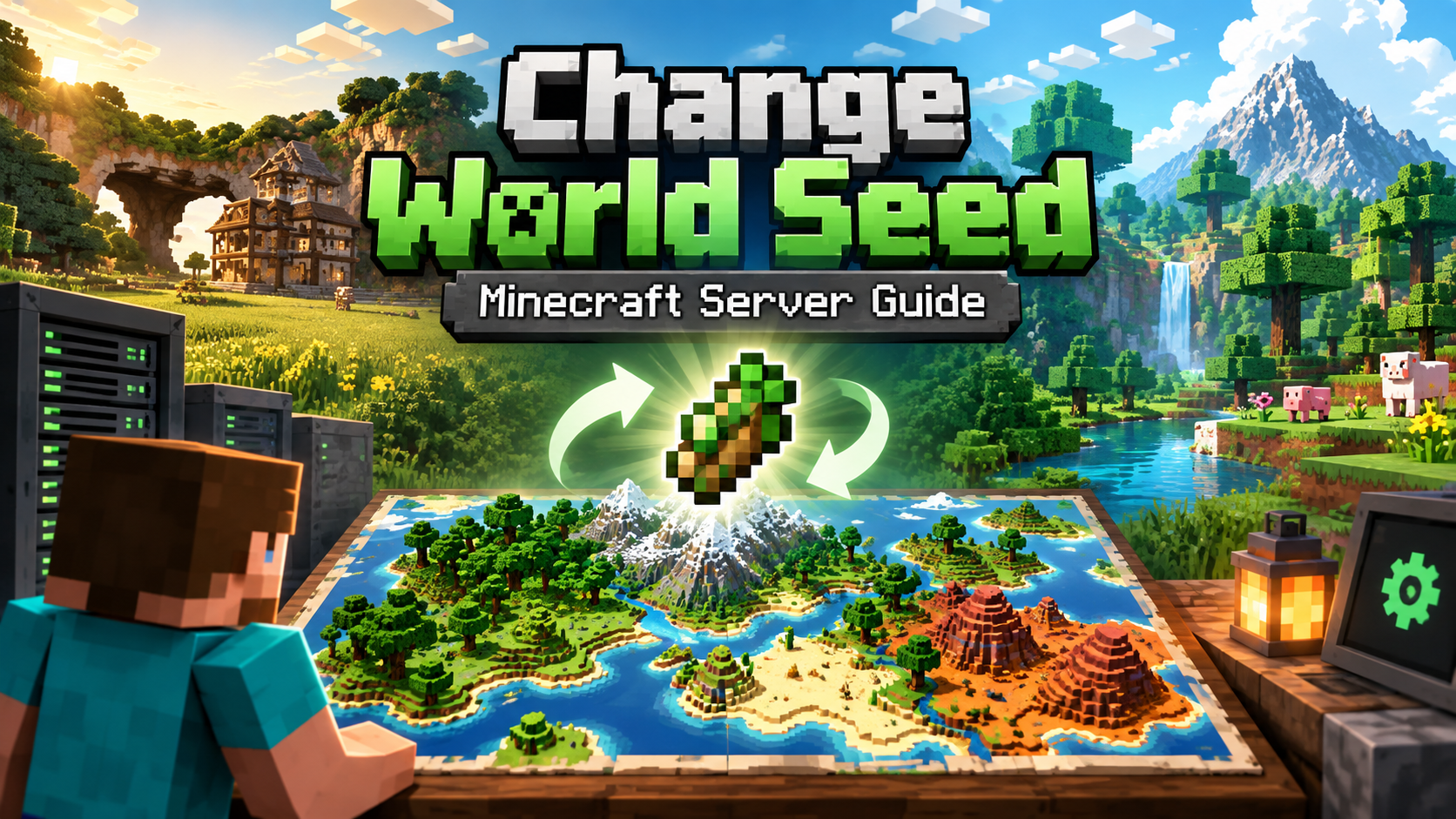
Learning how to change the seed of a Minecraft server is useful when starting a new world or when you want to generate a completely different map.
A Minecraft world seed determines how the world is generated, including terrain, biomes, structures, caves, villages, and other world generation features. Changing the seed does not change an existing world that has already been generated. To use a new seed, you generally need to create a new world or reset the existing one.
This guide explains how to change the seed of a Minecraft server by editing the server.properties file.
This guide is written for Minecraft: Java Edition servers, including Vanilla, Paper, Spigot, and Purpur servers.
What Is a Minecraft World Seed? #
A Minecraft seed is a value used by Minecraft to generate a world.
The seed controls how the world is generated, including:
- Terrain
- Biomes
- Villages
- Strongholds
- Structures
- Caves
- Oceans
- Mountains
- Other world generation features
A seed can be a number or text.
For example:
123456789or:
my-survival-worldMinecraft converts the seed into a value that is then used during world generation.
Important: Changing the Seed Does Not Change an Existing World #
Changing the level-seed setting does not regenerate an existing world.
If your server already has a world, Minecraft will continue using the existing world data.
For example, if your server currently has:
worldchanging the seed will not replace the terrain inside that folder.
To use the new seed, you need to generate a new world or reset the existing world.
Always create a backup before deleting or resetting a world.
How to Change the Minecraft Server Seed #
Step 1: Stop Your Minecraft Server #
Stop the Minecraft server completely.
Do not change the world seed while the server is running.
This prevents Minecraft from continuing to write world data while you are changing the configuration.
Step 2: Open Your Server Files #
Open the File Manager in your Game Panel.
Find the file:
server.propertiesOpen the file using the panel’s built-in text editor.
Step 3: Find the level-seed Setting #
Look for:
level-seed=If the setting already contains a seed, it may look similar to:
level-seed=123456789Step 4: Enter Your New Seed #
Replace the existing value with your new seed.
For example:
level-seed=987654321You can also use a text-based seed:
level-seed=my-survival-worldIf you want Minecraft to generate a random seed, leave the value empty:
level-seed=Step 5: Save the File #
Save your changes to server.properties.
Make sure the file is saved before starting the server again.
Step 6: Generate a New World #
Remember that changing level-seed does not regenerate an existing world.
If you want the new seed to generate a completely new world, you need to reset or replace the existing world.
Before doing this, create a backup of your current server.
For a standard Paper or Spigot server, the world folders may look like:
world
world_nether
world_the_end
Do not delete these folders unless you are certain that you want to reset the world.
Step 7: Start the Server #
Start your Minecraft server.
If the existing world has been removed or replaced, Minecraft will generate a new world using the seed specified in:
server.propertiesStep 8: Verify the Seed #
Once the server has started, join the server and use:
/seedThe server will display the seed of the current world.
You can also check the server console for world generation information.
How to Find Your Current Minecraft Server Seed #
If you want to save your current seed before creating a new world, you can use:
/seedYou may need the appropriate permission to use the command.
Make sure you save the seed somewhere before resetting your world if you may want to recreate it later.
Changing the Seed Without Losing Your Current World #
If you want to keep your current world, do not delete the world folder.
Instead, create a backup first and then generate a separate world using the new seed.
This allows you to keep your existing world while testing a new seed.
Plugins such as Multiverse can also be used to manage multiple worlds on a server.
Common Mistakes to Avoid #
Changing the Seed and Expecting the World to Change #
Changing level-seed does not change terrain that has already been generated.
The new seed is used when Minecraft generates a new world.
Forgetting to Stop the Server #
Always stop the server before changing world configuration or replacing world files.
Deleting the World Without a Backup #
Deleting a world permanently removes the world data unless you have a backup.
Always create a backup before resetting a world.
Only Deleting the Main World #
Paper and Spigot servers commonly use separate folders for the Nether and End:
world
world_nether
world_the_end
If you want a completely fresh server world, make sure you understand which world folders your server is using.
Helpful Internal Links to Add #
Add internal links to related Minecraft guides on your site:
- How to Backup a Minecraft Server
- How to Upload and Install a Minecraft World
- How to Reset a Minecraft Server World
- How to Edit server.properties on Paper or Spigot Minecraft Servers
- Minecraft Server Types Explained: Vanilla vs Paper/Spigot vs Modded
A Simple Way to Change Your Minecraft Server Seed #
Changing a Minecraft server seed is simple:
- Stop your Minecraft server.
- Open
server.properties. - Change the
level-seedvalue. - Save the file.
- Back up your existing world.
- Generate a new world if you want the new seed to be used.
- Start the server.
- Use
/seedto verify the new world seed.
Always create a backup before resetting an existing world. A new seed can give you a completely different Minecraft world, but the old world cannot be recovered without a backup.
Written by
relyzishere
Part of the Academy Hosting team — running game, bot, and web servers in production. Published September 15, 2026. • 5 min read.
Keep reading
More from this category
How to Download a World From Your Minecraft Server
Downloading a Minecraft world from your server is useful when you want to create a local backup, move your world to another server, continue playing it in singleplayer, or keep a copy of your world outside your Game Panel. A Minecraft world
How to Upload a World to Your Minecraft Server
Uploading a Minecraft world to your server is useful when you want to transfer an existing singleplayer world, move a world from another server, or restore a world from a backup. A Minecraft world contains all of the terrain, structures, pl
How to enable command blocks on your minecraft server
Command blocks are useful for Minecraft servers that use custom maps, minigames, adventure systems, teleportation systems, automated events, and other command-based mechanics. By default, command blocks may not be enabled on a Minecraft ser